Make long webpages easier to read
Read article content in Inling Browser with font, spacing and theme controls, search and bookmarks, plus single or double page layouts that adapt to available width.
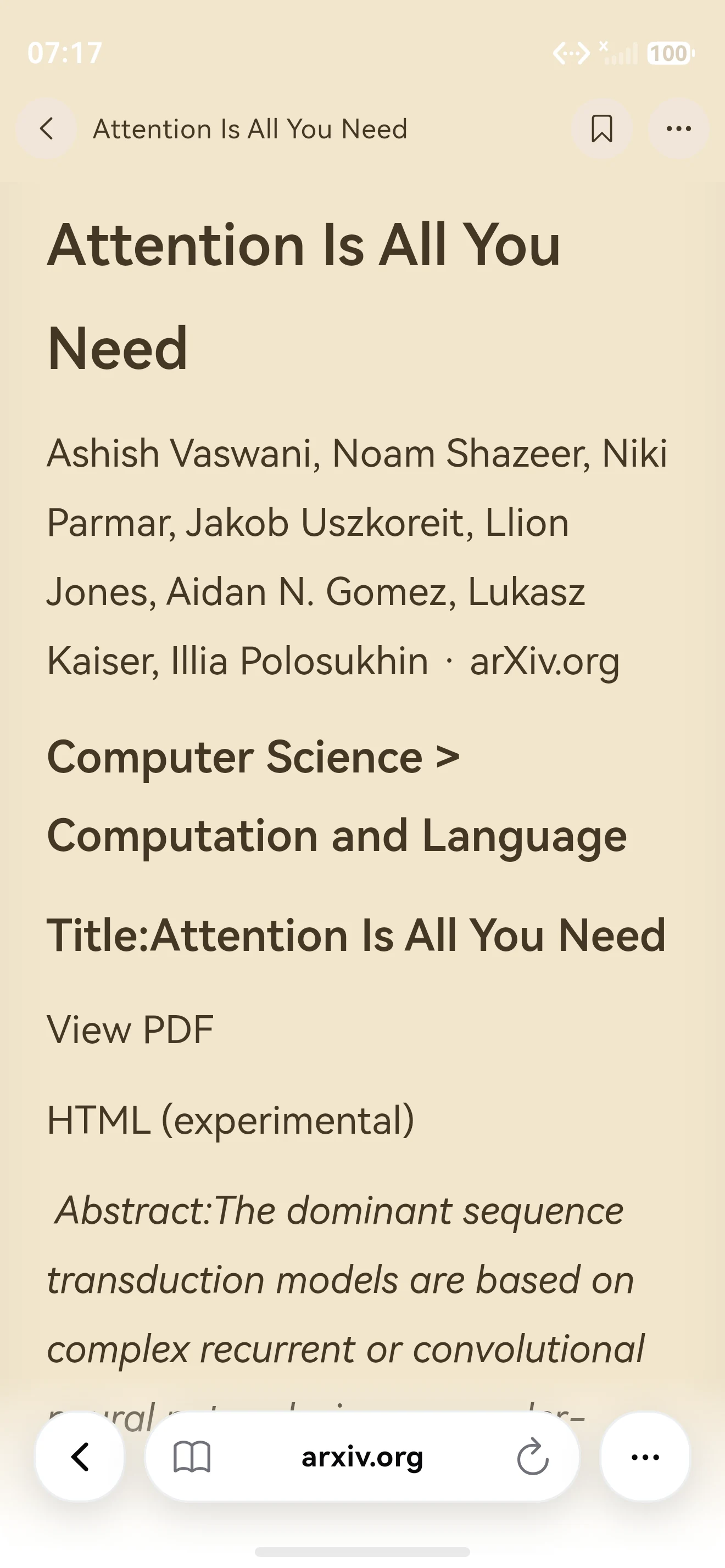
Extract the article into a reading view
Inling reader mode attempts to extract an article's text and images into a separate layout. On a suitable page, use the book control at the left of the address bar and choose the reader mode option. A reading prompt may also appear when an article is detected.
Extraction depends on page structure. Login barriers, dynamic content and interactive pages may prevent it. Unsupported pages show a message and return to the original webpage. Reader mode does not bypass a site's access controls or paywall.
Adjust the page to your screen
Choose fonts, text size, line spacing, margins and themes. Continuous scrolling suits a phone; single and double page layouts adapt to the actual available width on a tablet, foldable or split screen. Layout changes retain the reading position.
Contents, reading bookmarks, in-text search and text selection help locate passages in long articles. Images and mathematical content depend on extraction quality and should be checked against the original page when accuracy matters.
Try a clear, accessible article first
Open an article with a recognizable title and body that does not require login. Enter reader mode, enlarge the text, change the theme and search for a word. Compare against the original page for omissions. The step-by-step guide is currently in Chinese.
Website changes can affect extraction. When reporting extraction problems, include a public URL, device and app version without exposing private documents.
The AI assistant can discuss a page separately. Reader mode does not provide the planned AI learning paths, flashcards or FSRS review, which are not yet available.